How do posts work on Your Home Page?
Here's how it works:
- Connect your Instagram account.
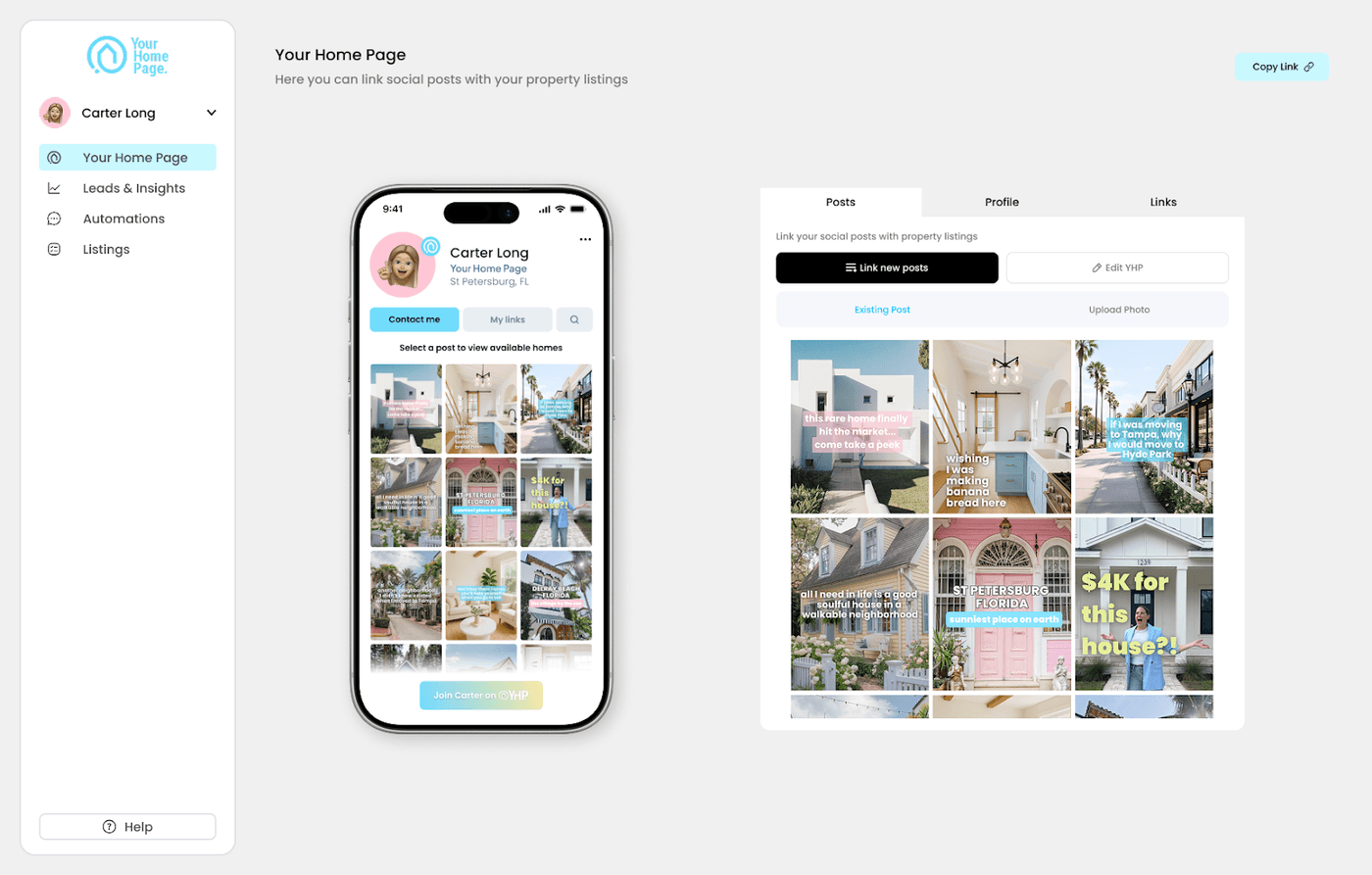
- Your posts automatically appear as cover photos in the Your Home Page portal.
- Link each post to a specific listing — you choose which posts connect to which properties. They then show up on your yhp.link.
- Buyers click a post on your yhp.link and see the listing details instantly.
How many posts should I link?
- Minimum: 3–6 posts to start
- Recommended: 9+ linked posts for best performance
- Ongoing: connect 2+ posts per week
More linked content creates more entry points for buyers, which increases lead capture.
What types of content perform best?
Link these:

- Home tours and walkthroughs
- Neighborhood highlight videos
- Trending content filmed in properties
- Recently closed or under-contract posts
- Lifestyle videos filmed at coffee shops, parks, or other local spots
Avoid linking these:

- Generic quotes or memes
- Non-property content
Can I link one post to multiple listings?
Not yet. Multi-listing connections are planned for a future release.
Can I change which listing a post links to?
Yes, at any time.
- Select the post in your feed.
- Click Change Listing.
- Type in the MLS number or address.
- Select the correct address from the results.
- Review the details on the confirm screen and click Connect.
You can also remove a listing from a post entirely from the same screen.
What are cover photos?
Cover photos are the images buyers see when they visit Your Home Page. They're the visual entry point to your listings.
- Instagram thumbnails (default): your Instagram post thumbnail displays automatically.
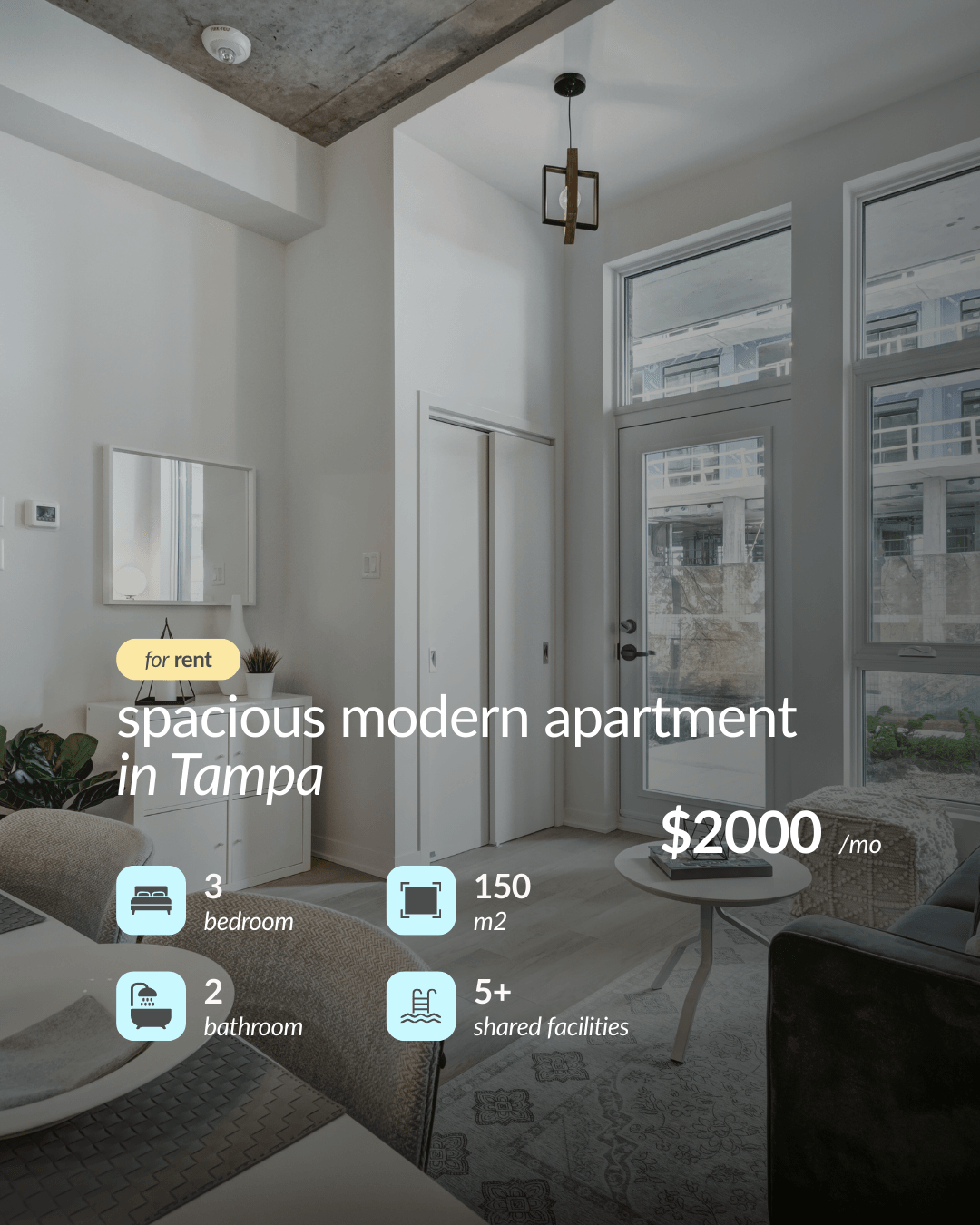
- Custom cover images (recommended): upload a custom image with price, beds/baths, or location overlays.
Should I use custom cover photos?
Custom covers with clear details like price, beds/baths, and location increase click-through rates. Use them when:
- You want more control over the design
- The Instagram thumbnail doesn't show the property clearly
- You want to add text overlays for key details
- Select the post.
- Click Upload Custom Cover.
- Choose your file.
- Click Save.
What happens when a listing closes?
When a listing closes or goes inactive, the post stays live on your page and buyers are automatically shown similar active listings. You don't need to manually remove content.
Your content keeps generating leads even after a property sells.
Why aren't my posts linking correctly?
"I linked a post but it's not showing the listing."
- Refresh the page.
- Confirm the listing is saved.
"My Instagram posts disappeared."
- Go to your Your Home Page dashboard → Profile and confirm Instagram is still connected.
"I want to unlink a post."
- Select the post → Remove Post → save your changes.
If the issue persists, contact support@yourhomepage.ai.