What types of listings can I add?
You can link posts to any of the following:
- MLS listings not showing up in YHP automatically
- Rental properties
- New construction
- Off-market homes
- Manually created listings
Why doesn't a listing appear in search?
Some listings don't automatically populate in MLS search:
- New construction
- Off-market properties
- Rental properties
- Recently added MLS listings — may take 24–48 hours to sync
- MLS listings not set to public
If a listing isn't showing up in search, add it manually from your listings dashboard.
What listing fields are required?
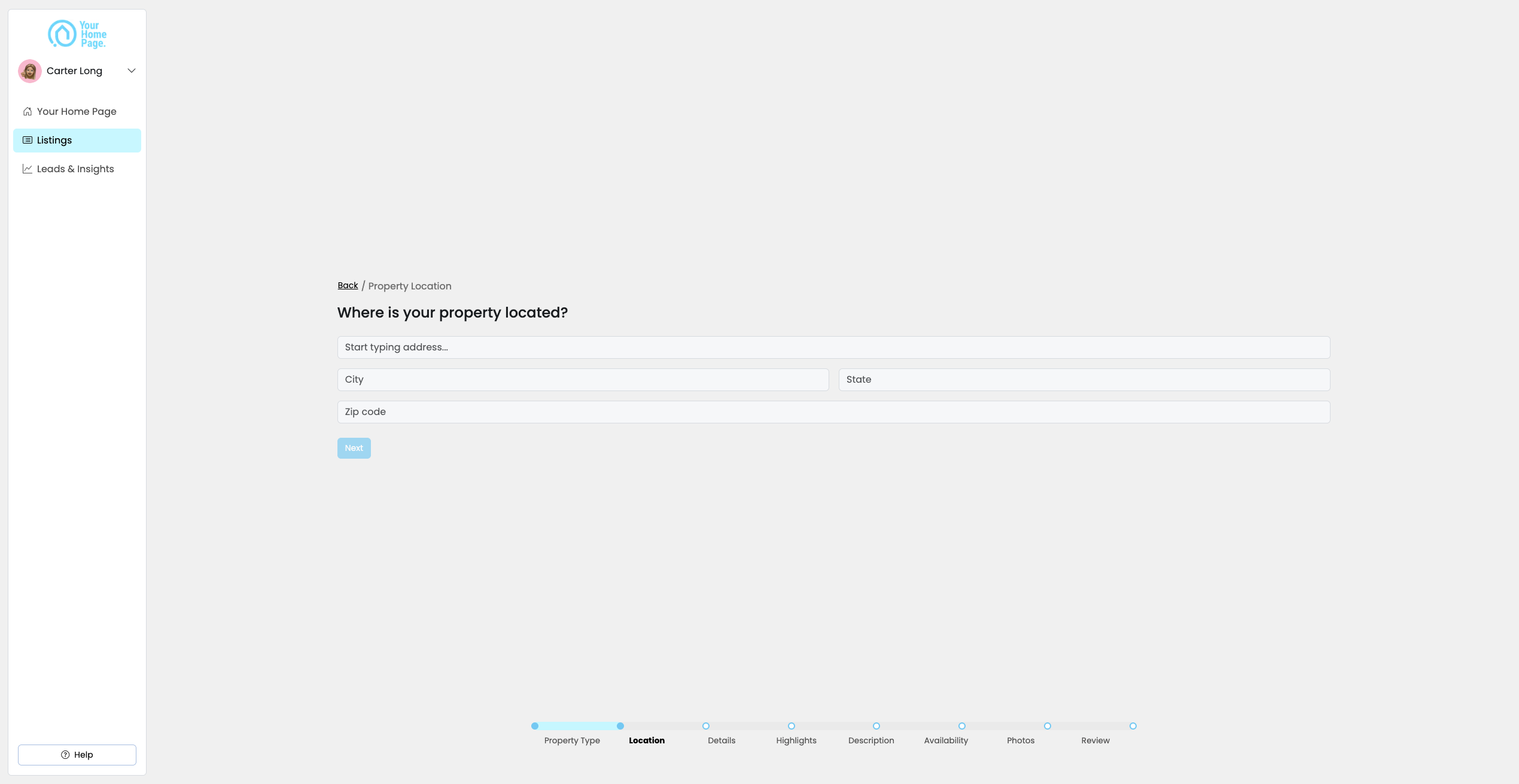
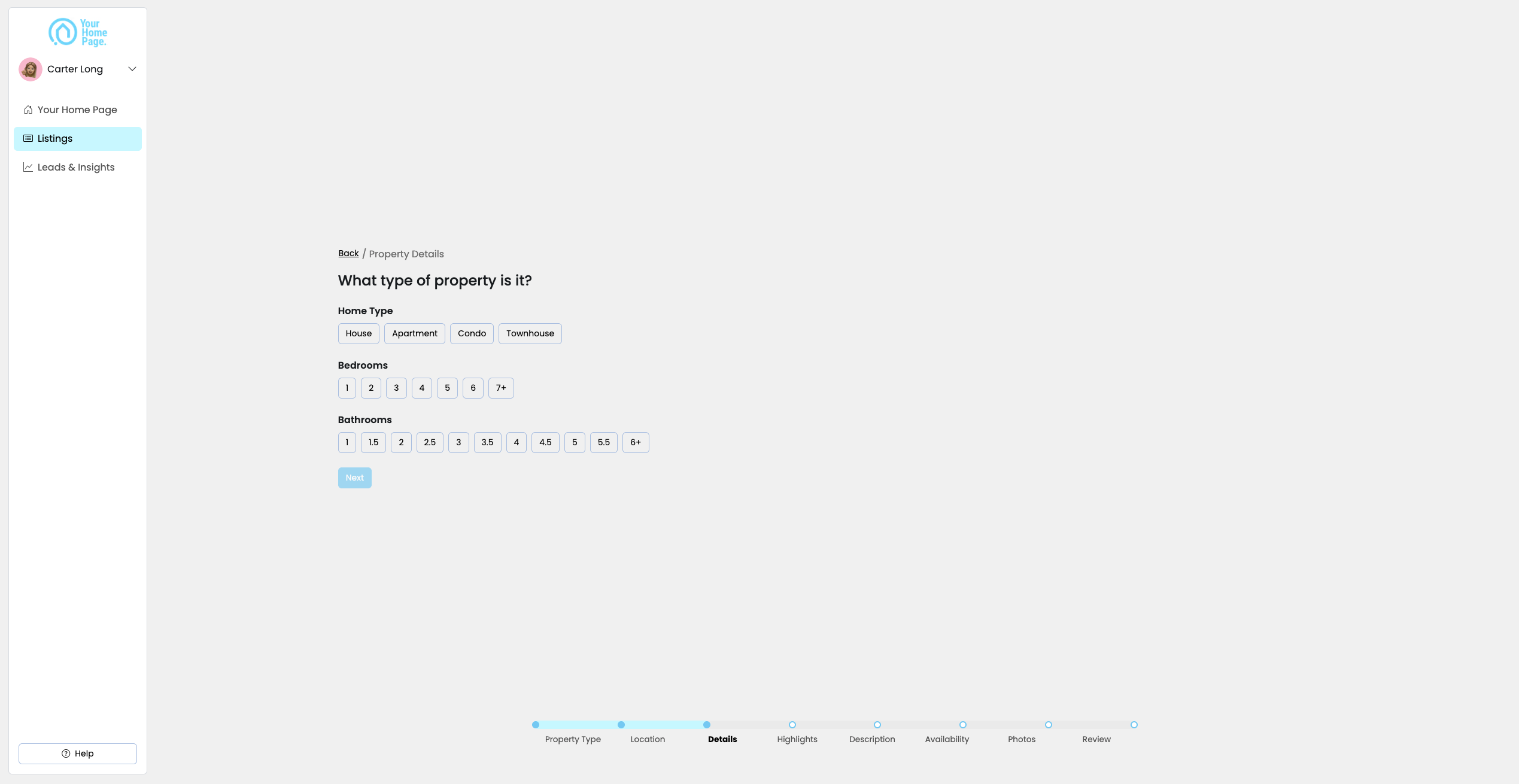
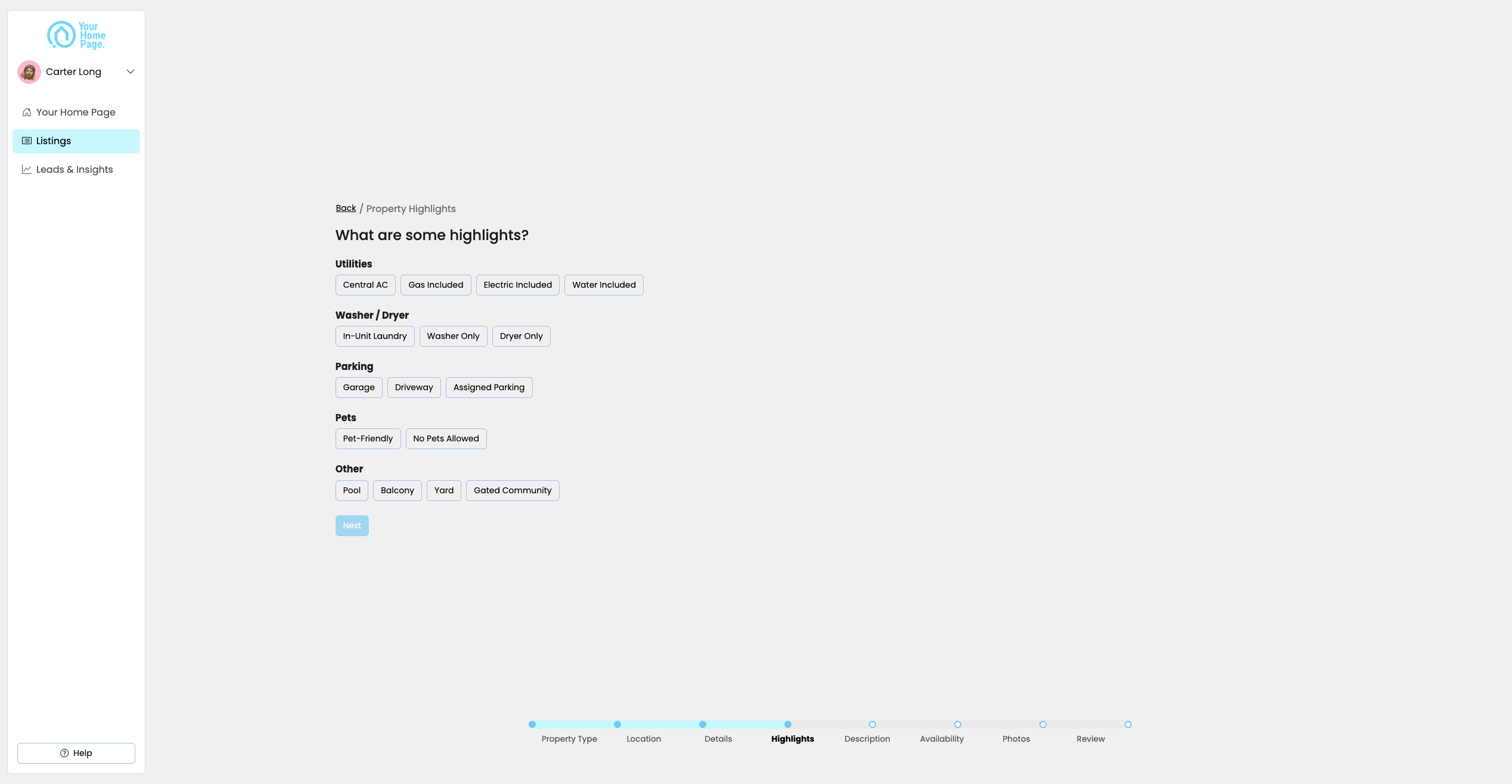
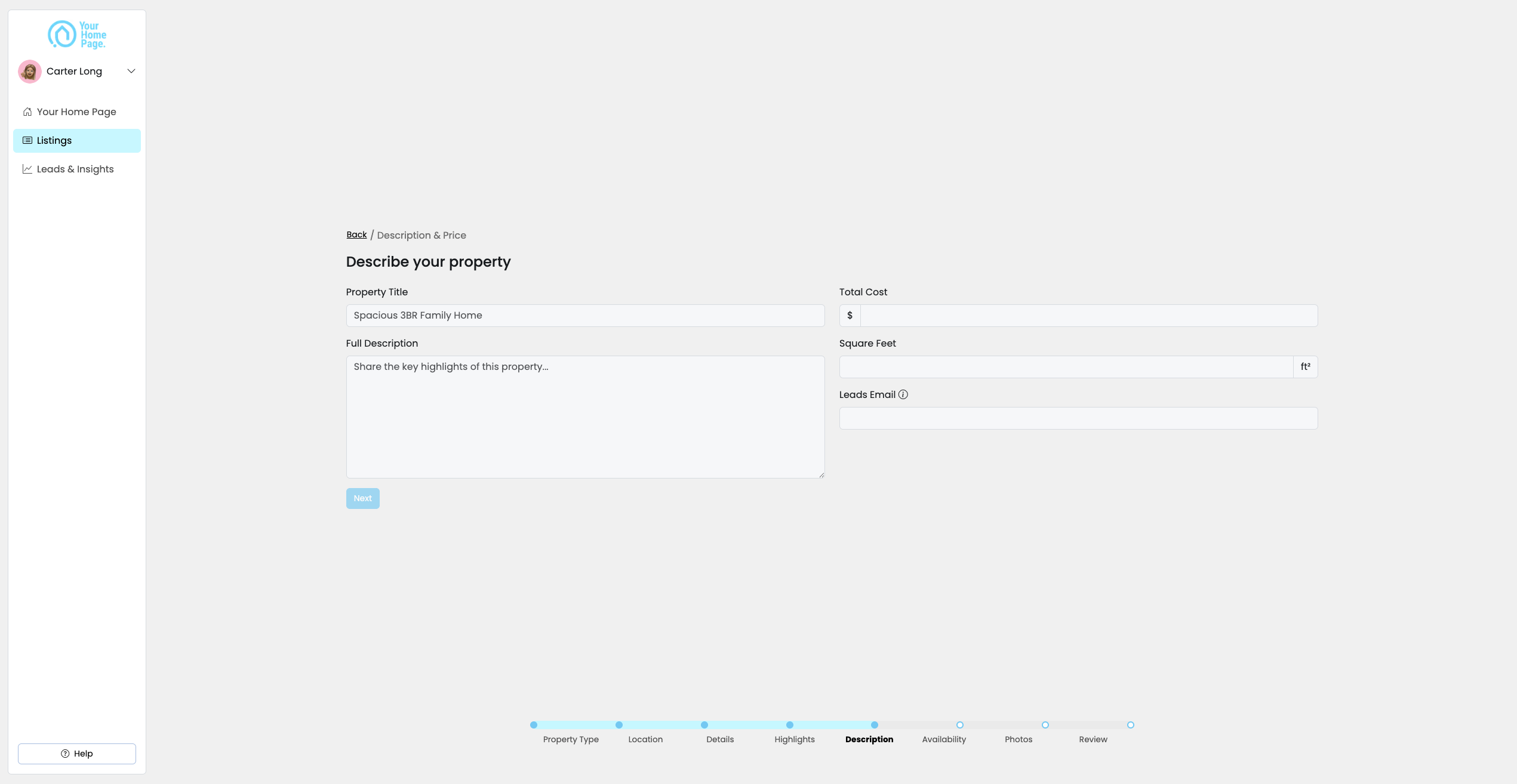
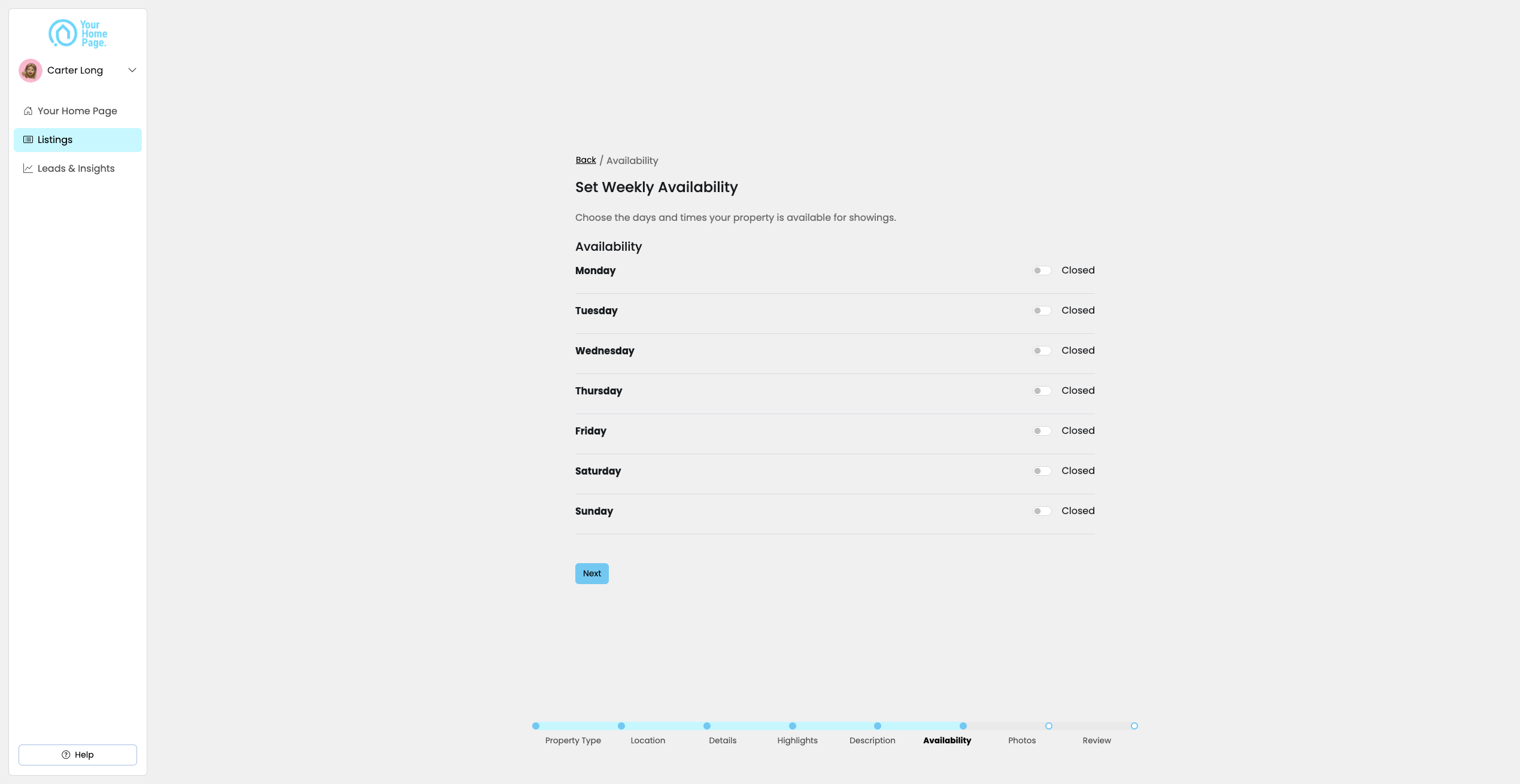
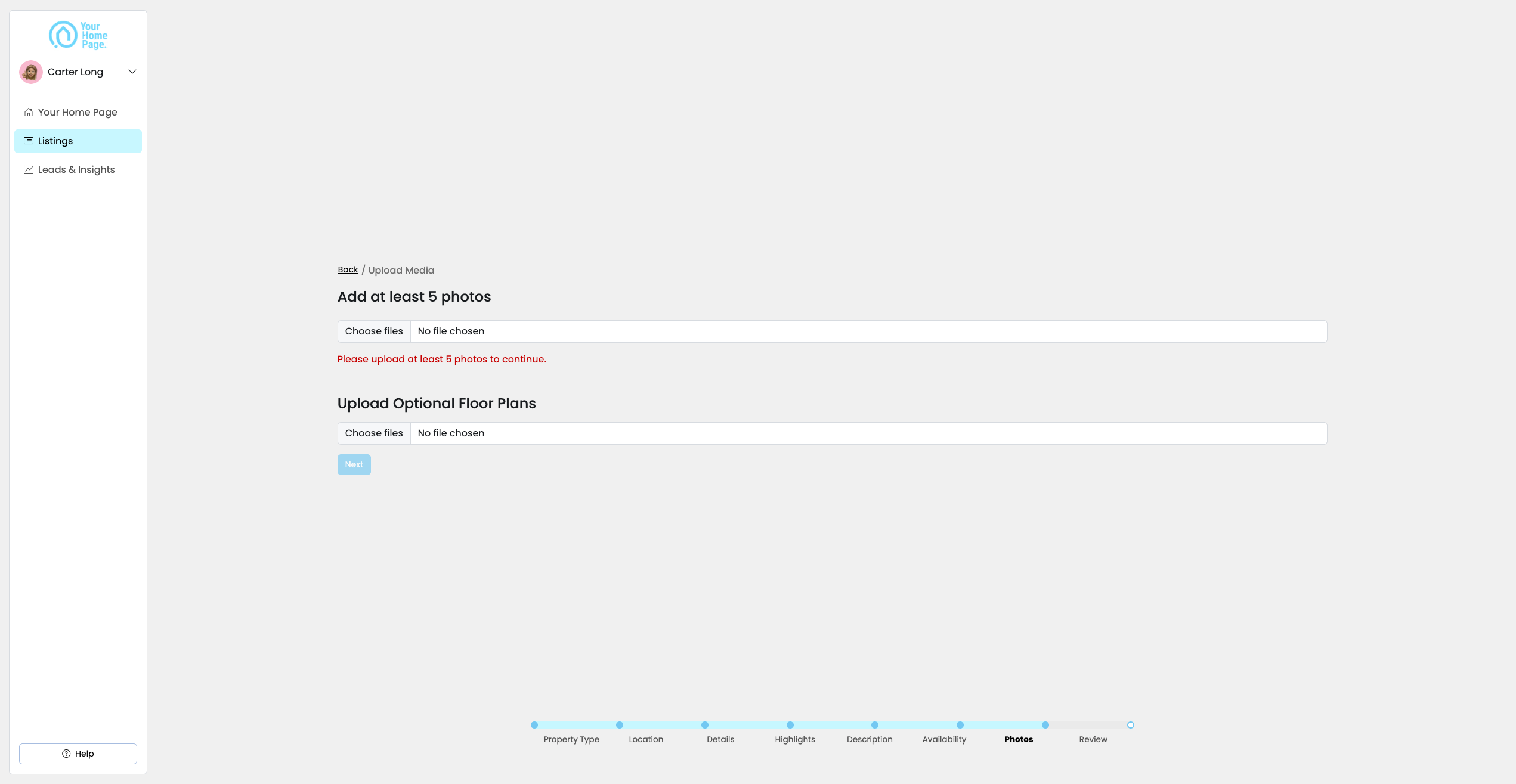
To publish a listing, you must include:
- Address
- Price
- Beds and baths
- Listing type
- Additional features
- Property details
- Showing availability
- At least 5 photos
How do I edit a listing?

- Go to Listings.
- Select the listing you want to edit.
- Update details — price, photos, description, and so on.
- Click Save.
Changes apply immediately to your live page and any linked posts.
How do I mark a listing as sold or inactive?
- Go to Listings.
- Select the listing.
- Change the status to Sold or Inactive.
- Click Save.
Once marked inactive:
- The listing is hidden from new buyers
- Posts linked to it automatically show buyers similar active listings
- You can reactivate it at any time
Can I delete a listing permanently?
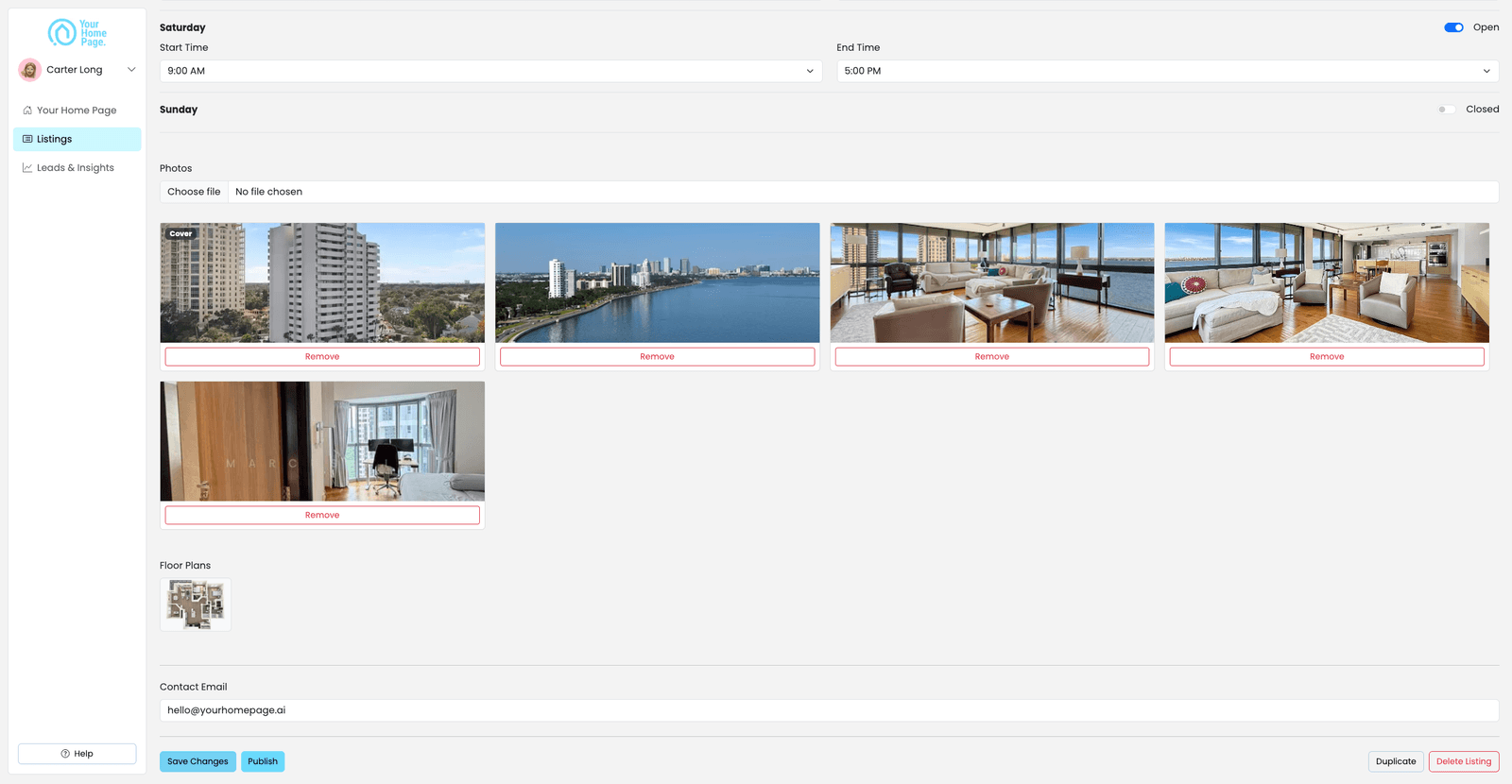
- Go to Listings.
- Select the listing.
- Click Delete Listing.
- Confirm deletion.
Deleted listings can't be recovered. If you might relist the property later, mark it as Inactive instead — posts linked to it will keep showing buyers similar active listings.
What if I'm adding a new construction listing that isn't mine?
New construction listings may require approval from the listing agent.
- Submit the listing for approval.
- You'll be notified when it's approved or denied.
- If denied, contact the listing agent directly to get permission.
This prevents incorrect attribution and ensures MLS compliance.
Why isn't my listing showing up on my page?
"I added a listing but it's not displaying"
- Confirm all required fields are completed — address, price, beds/baths, at least one photo
- Refresh your dashboard
- Check that the listing is linked to at least one post — unlinked listings don't display
"Photos won't upload"
- Check file size (under 10MB) and format (JPG or PNG)
- Refresh and try again
"I updated the price but it's not showing"
- Refresh your live page — changes apply immediately but may require a browser refresh
If the issue persists, contact support@yourhomepage.ai with the listing address and MLS number.